


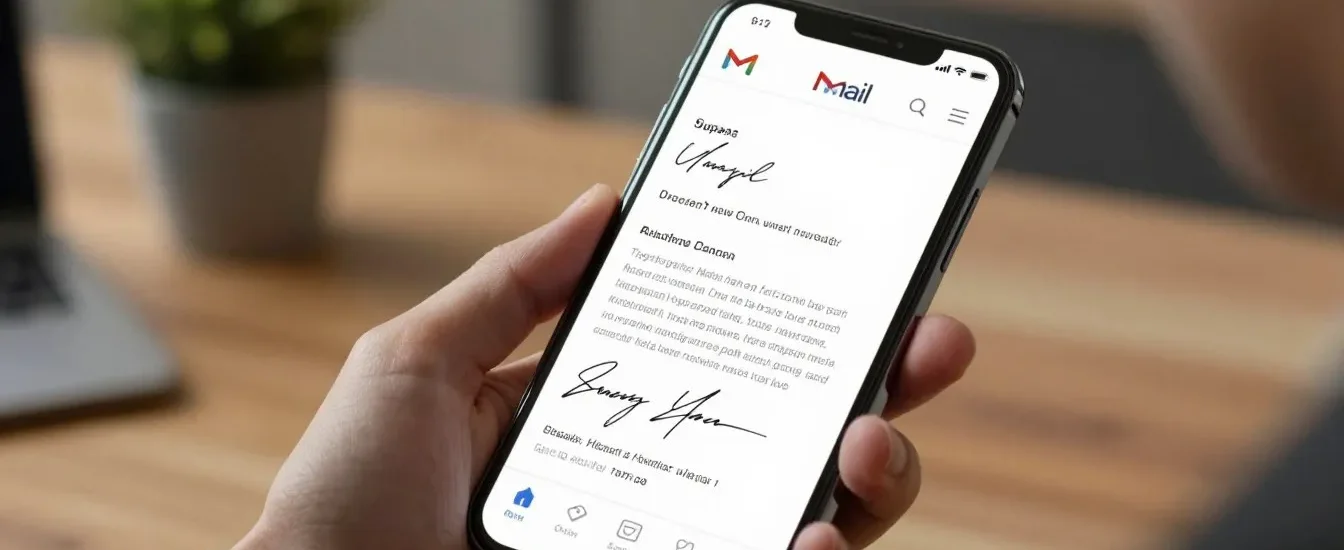
Did you know over 300 billion emails are sent daily? With so many messages flying around, your emails need a distinctive touch to catch someone’s eye.
A professional sign-off is like your digital business card. It shares important contact details and strengthens your personal brand with each email. Learning how to add signature in gmail is a simple way to make your messages stand out.

You don’t need to be tech-savvy to customize your settings. Just a few quick steps, and your emails will look polished and credible. Let’s dive into the process so you can manage your online identity with total confidence.
Key Takeaways
- A professional email footer enhances your personal brand.
- Signatures provide recipients with easy access to your contact information.
- Customizing your settings takes only a few minutes of your time.
- Consistent branding builds trust with every person you email.
- You can update your details anytime to reflect new roles or contact info.
Understanding the Importance of a Professional Email Signature
Your professional email signature is a key tool in your communication arsenal. It’s like a digital business card that goes with every email. It gives recipients all the contact details they need quickly.
This part of your email does more than just share contact info. It reinforces your brand identity with every email. It shows you’re organized and pay attention to details. A consistent look builds long-term trust with your network.
Think of your signature as a key part of your strategy. A well-made professional email signature is like a silent advocate for your work. It keeps your professional image polished and trustworthy in every email.
How to add signature in gmail on your desktop computer
Customizing your email starts with the gmail signature settings on your desktop. By controlling your signature, you make sure every message shows your professional brand.
Accessing the Gmail settings menu
First, open your Gmail inbox in your favorite web browser. Look for the gear icon in the top right corner and click it. This opens the quick settings panel.
Then, choose the See all settings button. It takes you to the main settings page where you can adjust your account.
Navigating to the signature creation field
In the settings menu, make sure you’re on the General tab. Scroll down until you find the Signature section.
If you haven’t made one yet, click Create new. Here, you can type or paste your signature into the box.
Saving your changes for immediate activation
After designing your signature, don’t leave the page. Scroll to the bottom to find the Save Changes button.
Clicking this button is essential. It makes sure your new gmail signature settings are live. After saving, your signature will show up in all your emails.
Designing an effective email signature layout
Learning to design a email signature is key to showing off your brand. A clean layout makes sure your contact info is easy to read. It also makes you look professional to everyone you send emails to.
Choosing the right font and typography
Your font choice is the base of your custom email signature. It’s important to pick fonts that work on all email clients. This way, your email looks right everywhere.
- Stick to standard web-safe fonts like Arial, Helvetica, or Georgia.
- Use a maximum of two different font styles to maintain a clean look.
- Ensure your font size is large enough to read on mobile devices, typically between 11 and 14 pixels.
Balancing text and whitespace
Don’t pack your signature with too much info. Whitespace helps keep your look professional and easy on the eyes.
By giving your text space, you help the reader focus on what’s most important. Simplicity is key to a signature that works well and looks modern.
Selecting professional color schemes
Colors can make your signature pop, but use them wisely. A custom email signature should have no more than two or three colors. These should match your company’s brand.
Here are some tips for picking colors:
- Use dark text on a light background for maximum legibility.
- Pick a single accent color for your links or icons to create visual interest.
- Avoid neon or overly bright shades that can distract from your contact details.
Incorporating contact information and social media links
Your email signature is like a digital business card that connects you with others. It makes a simple footer into a useful hub for your career. Consistency and clarity are key to making a strong impression.

Essential contact details to include
To build trust, include the most important info that proves who you are. Start with your full name and job title to show your professional role. Add a direct phone number and your company website for easy contact.
Adding clickable social media icons
Today, networking is all about your online presence. By adding social media icons to gmail, you make it easy for people to find you on sites like LinkedIn or Twitter. These icons are more engaging than text links and boost your online visibility.
There are many free icon sets online that fit your brand colors. After finding your images, add them to your signature settings. Then, link each icon to your specific profile URL.
Linking to your professional portfolio or website
If you’re in a creative or technical field, your portfolio is key. Include a clear, clickable link to your website or project gallery. This lets people see your work right away, turning every email into a marketing opportunity for your skills.
Adding images and logos to your signature
A professional headshot or logo can make your emails pop. By adding a gmail signature image, you leave a lasting impression. This visual element adds credibility to your emails.
Uploading your professional headshot
To start, go to your signature settings and find the image icon. You can upload a file from your computer or use an image URL. Make sure your headshot is clear and has a professional background.
Resizing images for optimal display
After adding your gmail signature image, adjust its size. Click on the image to see size options like small, medium, large, or original. Choose the right size to avoid distortion or overwhelming your email.
| Image Type | Recommended Width | File Format |
|---|---|---|
| Professional Headshot | 100px – 150px | JPG or PNG |
| Company Logo | 150px – 200px | PNG (Transparent) |
| Social Media Icon | 30px – 50px | PNG |
Troubleshooting common image loading issues
Sometimes, a gmail signature image might not load or show as a broken icon. This can happen if the image is on a private server. Use a public image hosting service or upload directly to your signature settings.
If you see formatting problems, try clearing your browser cache or check the file size. Big files can slow things down. Always optimize your images before uploading. These steps help keep your branding consistent and professional.
Setting up signatures for multiple Gmail accounts
If you handle many roles, your email signature should show your diversity well. Having multiple gmail signatures helps you look professional in every email. This could be to a client, a colleague, or a friend.
Changing your gmail signature settings makes sure every email has the right tone and info. This keeps your professional image clear in all your digital talks.
Managing aliases within a single inbox
To use different signatures, first link your aliases to your main account. Go to your account settings under “Accounts and Import” to add them.
After checking, these addresses show up as “Send mail as” choices. This lets you have different professional looks without switching accounts all the time.
“Communication is the bridge between confusion and clarity.”
— Anonymous
Configuring unique signatures for different roles
With your aliases set up, go to the “General” tab in settings to find signatures. You’ll see a menu to pick which email to edit.
Just pick an alias, make a custom signature, and save. This automated process makes sure the right signature shows up in new emails based on the “from” address.
Learning these gmail signature settings is a big help for those with multiple gmail signatures. It lets you easily switch between a formal and casual signature with one click.
Configuring signature defaults for new emails and replies
Setting the right signature defaults for new messages and replies is key to better communication. It’s important to manage your signature in long email threads to keep conversations clean and professional. Adjusting these settings helps keep your branding consistent without overwhelming others with too much info.
Setting your primary signature for new messages
When starting a new conversation, you want to make a good first impression. Choose your full, detailed signature as the default for new emails. This signature should include your full name, job title, company logo, and key contact links.
To set this up, go to your Gmail settings and find the “Signature defaults” section. Pick your primary signature from the dropdown menu for “For new emails use.” This way, every new email you send will have your professional details automatically included.
Creating a shorter signature for email threads
For long email chains, a concise signature is better than a full one. A shorter version might just have your name and a direct phone number. This keeps the conversation focused without cluttering the email.
To set this up, choose your shorter signature in the “On reply/forward use” dropdown menu in your settings. This simple change helps keep your emails tidy and shows you respect your recipient’s time and space.
| Signature Type | Best Use Case | Recommended Content |
|---|---|---|
| Full Signature | New client outreach | Name, Title, Logo, Social Links |
| Concise Signature | Ongoing email threads | Name, Phone Number |
| No Signature | Internal quick chats | None |
How to add signature in gmail on mobile devices
Mobile communication is key in your daily work. Your signature should show your professional side, no matter the device. Setting up a gmail signature mobile is easy and keeps your messages looking good on the go.

Configuring signatures on the Gmail Android app
To start on Android, open the Gmail app and tap the menu icon. Scroll down to Settings and pick your account. Tap Mobile Signature, enter your text, and save your changes.
Setting up signatures on the Gmail iOS app
For iPhone or iPad, the steps are similar. Go to the menu, tap Settings, and choose your account. Find Signature settings and turn the switch on. Enter your details in the text box to set up your gmail signature mobile.
“Simplicity is the ultimate sophistication.”
Leonardo da Vinci
Understanding mobile signature limitations
Mobile apps have limits compared to desktops. You can’t use HTML, custom fonts, or clickable images. Your gmail signature mobile must be plain text for all to see.
Keep your signature simple and focused on contact info. This way, your professional image stays strong on all devices.
Using HTML and rich text for advanced signatures
HTML and rich text give you full control over your signature. They let you go beyond simple text. This way, you can make a custom email signature that shows off your professional side.
These tools help keep your branding consistent and eye-catching. Whether you’re a designer or a business owner, they offer the flexibility for a modern look.
Copying and pasting formatted text
Using a WYSIWYG editor is the simplest way to get a rich design. You can design your layout in a word processor or design tool. Then, just copy it into your email settings.
Be careful when using this method. Hidden formatting tags can sometimes cause problems. Always paste your content into a plain text editor first. This removes unnecessary code before you put it in your email settings.
Using HTML code for custom layouts
If you like precision, an html email signature is the best choice. You can set exact pixel widths, padding, and font styles. This ensures your design looks the same on all devices.
This method lets you have full control over your layout. You can add complex tables or specific brand colors. Standard editors might find it hard to render these correctly.
Testing your signature across different email clients
After designing your signature, check how it looks to your recipients. Different platforms like Outlook, Apple Mail, and Gmail handle code differently.
Send test emails to various accounts to check everything. Make sure images load and links work. This step is key to keeping your image polished and professional in every email.
| Method | Ease of Use | Design Control | Compatibility |
|---|---|---|---|
| Basic Text | High | Low | Excellent |
| Rich Text | Medium | Medium | Good |
| Custom HTML | Low | High | Variable |
Best practices for professional email branding
Your email signature is like a digital business card. It shows who you are professionally. By following email branding best practices, you make sure every email you send shows your credibility and values. This leaves a lasting impression on everyone you email.
Maintaining consistency across your team
Being consistent is key to good branding, more so for big organizations. When everyone uses the same layout, it builds brand recognition and trust. You need to have clear rules for fonts, colors, and logo placement for your team.
Having a template for your team helps avoid mixing up your brand. This way, your company looks organized and professional in every email.
Avoiding common signature design mistakes
It’s easy to overdo it with design, but simplicity is best. Avoid too many colors or big images, as they can distract. Cluttered designs also don’t work well on different email platforms, which can hurt your image.
Go for a simple, clean design that shows your name, title, and contact info. Use high-quality images that are the right size to keep your signature looking good without slowing down emails.
Keeping your signature mobile-friendly
Most people check emails on their phones, so making your signature mobile-friendly is a must. A professional email signature should be easy to read on small screens without needing to zoom or scroll. Make sure your text is big enough and links are easy to tap.
Test your signature on different phones to catch any layout problems before your clients see them. Using responsive design means your branding looks good on any device.
| Feature | Recommended Practice | Mistake to Avoid |
|---|---|---|
| Font Choice | Standard, web-safe fonts | Overly decorative scripts |
| Image Size | Small, optimized files | Large, high-resolution photos |
| Color Palette | Two to three brand colors | Rainbow or neon schemes |
| Layout | Clean, vertical alignment | Complex, multi-column tables |
Integrating third-party signature generators
You can easily make your email look better with modern design platforms. If you don’t want to start from scratch, these tools are a streamlined solution. They save you a lot of time and effort.
Benefits of using external design tools
Using a dedicated signature generator for gmail gives you access to top-notch templates. You can get a professional email signature design without needing coding skills or graphic design knowledge.
“A well-crafted signature is the digital equivalent of a firm handshake; it leaves a lasting impression on every recipient.”
These platforms help make sure your contact info, social media links, and brand elements are all in line. You also get features like:
- Automatic mobile optimization for all devices.
- Easy integration of clickable social media icons.
- Consistent branding across your entire organization.
Popular platforms for signature creation
Many top platforms make creating signatures easy and quick. HubSpot, WiseStamp, and Signature.email are known for their user-friendly designs and customization options.
These services offer various layouts for different professional needs. Whether you’re a freelancer or part of a big team, you’ll find a signature generator for gmail that meets your needs.
Importing generated signatures into Gmail
After you’ve designed your signature, adding it to your Gmail is easy. Most platforms have a “copy to clipboard” feature. This lets you paste the signature into your Gmail settings.
If you want more control, some tools let you export the HTML code. Just paste this code into the signature field. This way, your email signature design will look great on all email clients.
Troubleshooting common signature display problems
If your signature looks broken or messy, don’t worry. These common glitches are easy to fix. By troubleshooting gmail signature issues, you keep your professional image intact for every recipient. Most problems come from simple configuration errors that you can fix in minutes.
Fixing broken links and images
A common issue is a gmail signature image that won’t load or links that don’t work. First, make sure your image is hosted on a public server, not on your local drive. If the file path is private, your recipients will see a broken icon instead of your professional headshot.
Check your hyperlinks by clicking on them in the signature editor. Make sure they open the correct web pages. Always double-check the URL structure to confirm it includes “https://”, as missing prefixes often cause links to fail.
Resolving formatting issues after pasting
When copying a signature from a word processor, you might bring along hidden code. This extra data can mess up your layout. To avoid this, try pasting your signature as plain text or use a dedicated HTML editor to clean up the formatting.
If the layout is strange, highlight the entire signature and use the “Remove Formatting” tool in Gmail settings. This simple step helps you troubleshoot gmail signature inconsistencies by removing unwanted styles that interfere with your design.
Checking browser compatibility
Sometimes, how your signature looks depends on the browser your recipient uses. While it might look perfect in Chrome, it could look different in Safari or Firefox. Test your signature by sending emails to yourself using different browsers and devices.
If you see big differences, use standard web-safe fonts to ensure maximum compatibility. Keeping your design simple is the best way to guarantee that your branding remains consistent and professional for everyone you contact.
Legal requirements and disclaimers in signatures
Protecting your organization from legal issues often starts with a well-crafted email signature legal disclaimer. Not every business needs one, but certain industries must include specific disclosures. Knowing these requirements helps you stay compliant while keeping your image professional.
When to include a privacy disclaimer
You should add a disclaimer if you handle sensitive data. This includes medical records, financial info, or legal advice. These statements tell the recipient that the message is confidential and meant only for them. If you work in a regulated field, not having this notice can cause big compliance problems.
Even if your field doesn’t require it, many companies use disclaimers to protect trade secrets. It acts as a first line of defense against sending emails to the wrong person. Always check with your legal team to see if your business needs this protection.
Formatting legal text for readability
The biggest mistake is using a font size that’s too small or a color that’s hard to read. Your legal text should be clear but not overshadow your contact info. Use a neutral gray color and a slightly smaller font than your name for a clean look.
Keep your text short to avoid cluttering your signature. A simple, clear statement is better than a long, complex one that nobody reads. Use the table below to choose the right disclaimer for your needs.
| Industry | Primary Focus | Recommended Disclaimer Type |
|---|---|---|
| Healthcare | Patient Privacy | HIPAA Compliance Notice |
| Finance | Data Security | Confidentiality & Non-Disclosure |
| Legal | Privilege | Attorney-Client Privilege Statement |
| General Business | Liability | Standard Email Signature Legal Disclaimer |
Maintaining your signature over time
It’s surprising how fast your contact details can go out of date in today’s fast world. An outdated email signature can cause you to miss out on chances and confuse people. It’s important to update email signature info when your phone number, job title, or company look changes. This keeps you easy to reach.
Updating contact information regularly
Your professional life changes, and your online presence should too. When you get a promotion or move to a new place, update your signature. This stops people from trying to reach you at the wrong number or email.
Being consistent builds trust with your network. Update your email signature at least every three months. This shows you’re organized and pay attention to details.
Refreshing your branding for seasonal changes
Your signature is more than just contact info; it’s a marketing tool. Use it to share about seasonal deals, webinars, or company news. Keeping your branding fresh makes your messages more engaging.
Here’s a schedule to keep your signature looking great all year:
| Maintenance Task | Frequency | Goal |
|---|---|---|
| Audit contact links | Every 3 months | Ensure zero broken links |
| Update job title | As needed | Reflect current role |
| Seasonal banner swap | Quarterly | Promote new campaigns |
| Verify social icons | Bi-annually | Maintain active profiles |
By sticking to this plan, you can keep your email signature up to date without stress. A well-kept signature is a powerful asset for your career. Stay ahead and keep your brand looking sharp in every email.
Conclusion
Learning how to use your Gmail signature is a great way to improve your work emails. You can now make sure your brand looks good and works well on all devices.
Check your contact info right now. Having the right details helps your contacts reach you fast. An updated signature shows you care about quality in every email.
Now you’re set to make your emails stand out. Start tweaking your signature to leave a strong impression. Your online presence is worth the effort.
FAQ
How do you quickly add a signature to your Gmail account on a desktop?
To set up your signature, open Gmail on your computer. Click the Settings gear icon in the top right. Then, select “See all settings.”Scroll down to the Signature section under the “General” tab. Here, you can enter your text in the signature creation field. Once you’re done, scroll to the bottom and click Save Changes.
Why should you invest time in creating a professional email signature?
Your signature is like a digital business card. It shows your credibility and brand identity in every message. It also provides essential contact information quickly, building trust with your clients and colleagues.
What are the best design practices for an effective layout?
Choose a clean font and typography that fits your brand. Balance your text with whitespace to avoid clutter. Pick a professional color scheme to make your custom email signature stand out.
Can you include clickable social media links in your Gmail signature?
Yes, add clickable social media icons to your signature. This helps drive traffic to your LinkedIn, Twitter, or professional portfolio. It also provides clear ways for people to connect with your digital networking efforts.
How do you handle images and logos to ensure they look professional?
When uploading your professional headshot or logo, resize images for the best display. If images appear broken, check your hosting or file size. A high-quality Gmail signature image keeps your visual presentation polished on all devices.
Is it possible to manage different signatures for multiple Gmail aliases?
Absolutely. You can set up unique signatures for each role with multiple Gmail accounts or aliases. In your Gmail signature settings, assign specific signatures to different “From” addresses. This ensures your communication is consistent and appropriate for each email context.
How do you prevent signatures from cluttering long email threads?
Configure your signature defaults for new messages and shorter signatures for replies and forwards. This keeps conversations clean and professional, preventing text overload in exchanges.
What are the limitations of setting up a signature on the Gmail mobile app?
While you can set up signatures on the Gmail Android app and Gmail iOS app, there are mobile signature limitations. Mobile signatures often lack complex HTML formatting and clickable images. Keep your mobile signature simple and text-based for a professional look on the go.
Can you use custom HTML for a more advanced signature design?
Yes, use HTML and rich text for a unique look. You can copy and paste formatted text or use HTML code for custom layouts. Always test your signature across different email clients to ensure it looks good for all recipients.
Are there third-party tools to help design a signature?
If coding is not your thing, try a signature generator like HubSpot or WiseStamp. These external design tools offer professional templates for easy customization. Once you’ve created your layout, import it into Gmail for a polished result.
When should you include a legal disclaimer in your signature?
You might need to include an email signature legal disclaimer or privacy disclaimer based on your industry or location. Format this legal text in a smaller font size to meet compliance standards without distracting from your contact details.
How often should you update your email signature details?
Update your email signature whenever your contact information changes, like a new phone number or job title. Refreshing your branding for seasonal changes or company announcements also keeps your professional presence current and accurate.